Hello. I’m an Android app developer on the Wadiz App Development Team.
Last July, Wadizdeveloped a benefits page. At that time, we implemented a server-driven UI on the "Welcome Coupon" issuance screen. A server-driven UI is a mechanism that allows the client app to dynamically render screens based on UI design information provided by the server. This enables UI changes without having to redeploy the app.
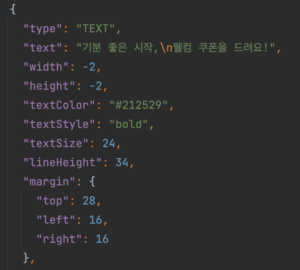
Example of JSON used in Server-Driven UI
Thanks to this, we can now manage the "Welcome Coupon" page more conveniently and smoothly! However, writing and modifying JSON files every time was a complicated and difficult task. We needed to develop an admin tool so that anyone managing the page could easily maintain the UI. We decided to develop using Compose Multiplatformto handle the development. Here’s a brief overview of that experience.
What is Compose Multiplatform?

Compose Multiplatform is a UI framework provided by JetBrains. It’s a tool that allows developers to build desktop and mobile apps simultaneously using Kotlin and Compose, which are familiar to Android developers. While it includes some experimental features, it supports iOS, Android, desktop, and web.
To get started with iOS app development, you'll need macOS, Java, Android Studio, Xcode, and CocoaPods. Install and run KDoctor to verify that everything is set up as shown below. We also recommend installing the Kotlin Multiplatform Mobile plugin.

Getting Started with Compose Multiplatform
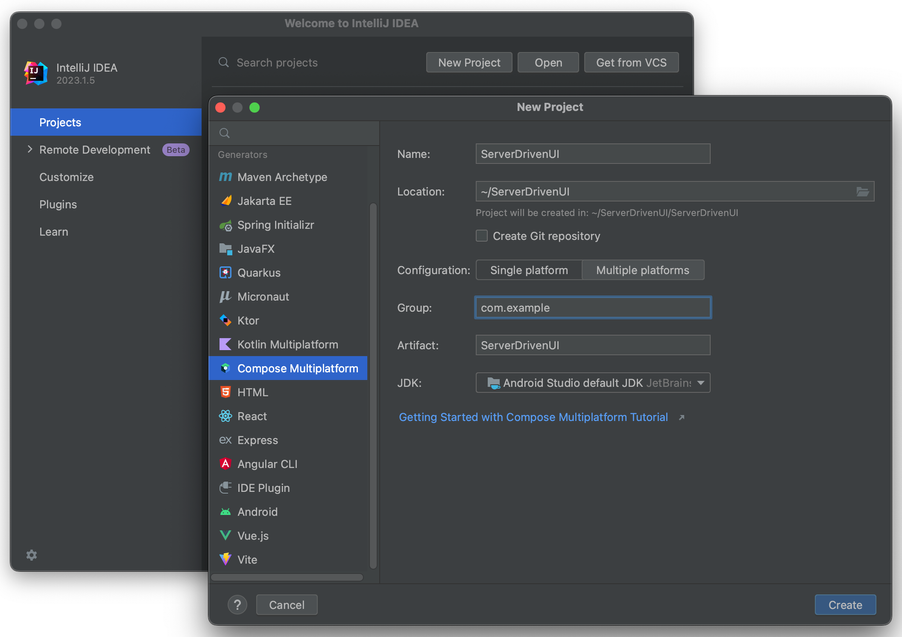
IntelliJ IDEA
First, you'll need IntelliJ IDEA to get started. Select New Project → Compose Multiplatform, then enter the project name, save location, package name, and other details.
Configuration
- Single platform: Choose this option when support for a single platform—either desktop or web—is sufficient.
- Select this option when you need support for multiple platforms, such as desktop, mobile, and web (Experimental).
Let's take a look at the project's packages.

The project consists of a common module and separate platform modules. The common module contains platform-independent code, while platform-specific code—such as that for Android and desktop—is written in the respective platform modules.
common
commonMain: Platform-independent code
androidMain: Writing actual Android functions and classes
desktopMain: Writing actual functions and classes for the desktop
android: Android platform-specific code
AndroidManifest.xml
desktop: platform-specific code for the desktop
For this project, I was able to write most of the code in the `commonMain` package. This is because, by using Compose, the screens I designed are platform-independent.
However, certain features—such as image loading, setting file save paths, and displaying dialogs—require different libraries and environments depending on the platform. To separate code by platform and manage it efficiently, Compose Multiplatform uses the keywords `expect` and `actual`.

Just as with Java interfaces, when you define an `expect` function or class in the `common` module, you write an implementation function or class with the `actual` suffix for each platform (Android, desktop). Similarly, you add the required libraries in `build.gradle`, tailoring them to each platform.
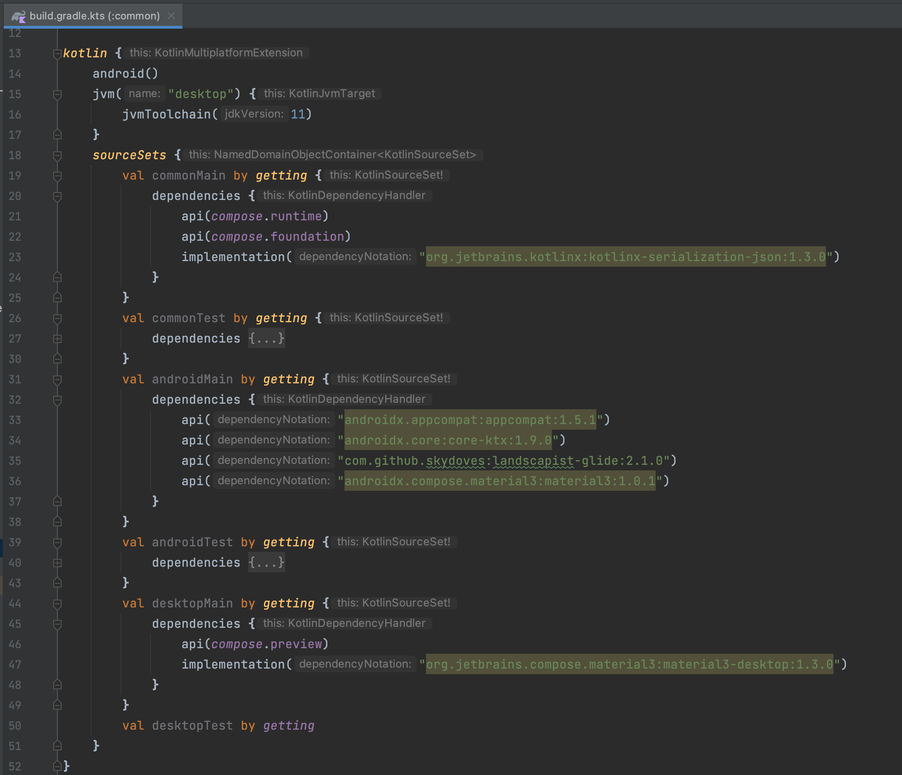
serialization-json Since the library is platform-independent, commonMainI added it. material3 Different libraries are required for the Android and desktop platforms, so we added them separately for each platform. As a result, we can now efficiently manage the libraries needed across multiple platforms.
Android Material 3
androidx.compose.material3:material3:1.0.1desktop material3
org.jetbrains.compose.material3:material3-desktop:1.3.0
Let's try writing some code
Next, I created a feature to add UI components to the screen. It displays a list LazyRow It creates a composable function to display the names and images of each option.

@Composable
private fun ComponentOptionItems(
    clickAction: (ServerComponentType) -> Unit
) {
    Spacer(modifier = Modifier.background(Color.Black).fillMaxWidth().height(1.dp))
    LazyRow(
        modifier = Modifier.fillMaxWidth()
            .height(200.dp)
            .background(Color.White),
        horizontalArrangement = Arrangement.spacedBy(12.dp)
    ) {
        val typeList = ServerComponentType.values()
        items(typeList) {
            Column(
                modifier = Modifier.fillMaxHeight().clickable {
                    clickAction.invoke(it)
                },
                horizontalAlignment = Alignment.CenterHorizontally
            ) {
                Text(
                    modifier = Modifier.padding(16.dp),
                    text = it.name,
                    color = Color.Black,
                    fontWeight = FontWeight.Bold
                )
                getPainterFile(it.name.lowercase())?.let { painter ->
                    Image(
                        painter = painter,
                        contentDescription = it.name
                    )
                }
            }
        }
    }
}
var openDialog: Pair<ServerComponentType, Component?>? by remember {
  mutableStateOf(null)
}

showOptionSettingDialog(openDialog?.first, openDialog?.second, deleteAction = { ... })

ComponentOptionItems {
  openDialog = Pair(it, null)
}openDialogcreate a variable named `remember`, and ComponentOptionItems This changes the openDialog when an item is clicked. showOptionSettingDialogin openDialog It's being redrawn because the state has changed.
The method for displaying dialogs differs between Android and desktop. Therefore, we define an `expect` function and write an `actual` function tailored to each platform.
// common
@Composable
expect fun showOptionSettingDialog(
  type: ServerComponentType?,
  baseComponent: Component?,
  deleteAction: () -> Unit, dismissAction: (Component?) -> Unit
  )

// android
@Composable
actual fun showOptionSettingDialog(
  type: ServerComponentType?,
  baseComponent: Component?,
  deleteAction: () -> Unit,
  dismissAction: (Component?) -> Unit
  ) {
    if (type != null) {
      var component by remember { mutableStateOf(baseComponent) }
      Dialog(
        onDismissRequest = { dismissAction.invoke(null)},
        properties = DialogProperties(usePlatformDefaultWidth = false),
        content = {
            ... // 옵션 화면 그리기
        }
      )
    }
}

// desktop
@Composable
actual fun showOptionSettingDialog(
  type: ServerComponentType?,
  baseComponent: Component?,
  deleteAction: () -> Unit,
  dismissAction: (Component?) -> Unit
  ) {
    if (type != null) {
      var component by remember { mutableStateOf(baseComponent) }
      Dialog(
        title = type.name,
        visible = true,
        state = DialogState(size = DpSize(1200.dp, 800.dp)),
        onCloseRequest = {
            dismissAction.invoke(null)
        }) {
          ... // 옵션 화면 그리기
        }
    }
}
At first glance, it may seem like both the Android and desktop versions are calling a Composable function named `Dialog`, but they are actually different functions.
// android
androidx.compose.ui:ui AndroidDialog.android

// desktop
org.jetbrains.compose.ui:ui-desktop Dialog.desktop
The options screen displayed in each dialog is the same across all platforms. Therefore, we call the Composable function defined in `common` to use it as a shared component.
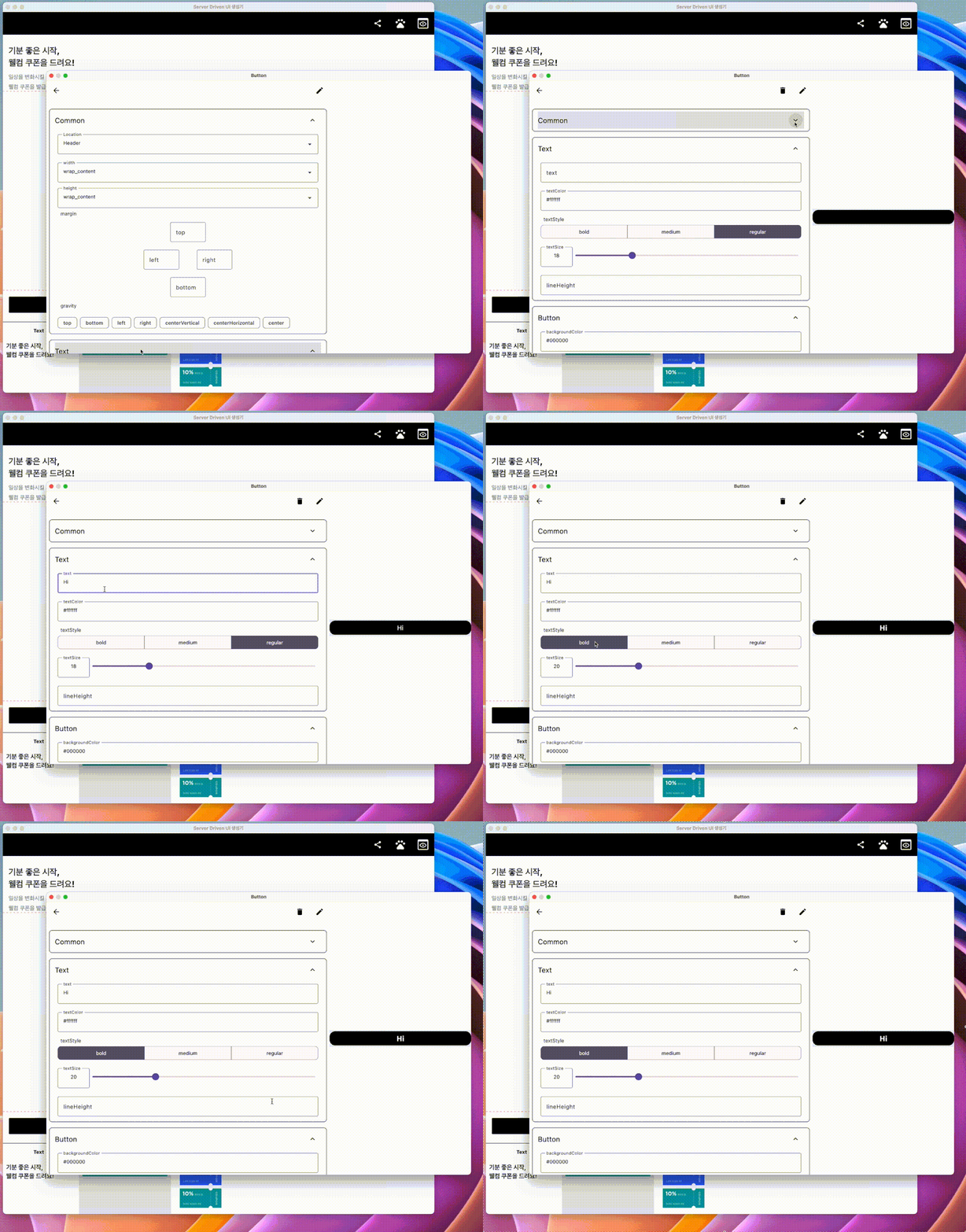
Desktop app
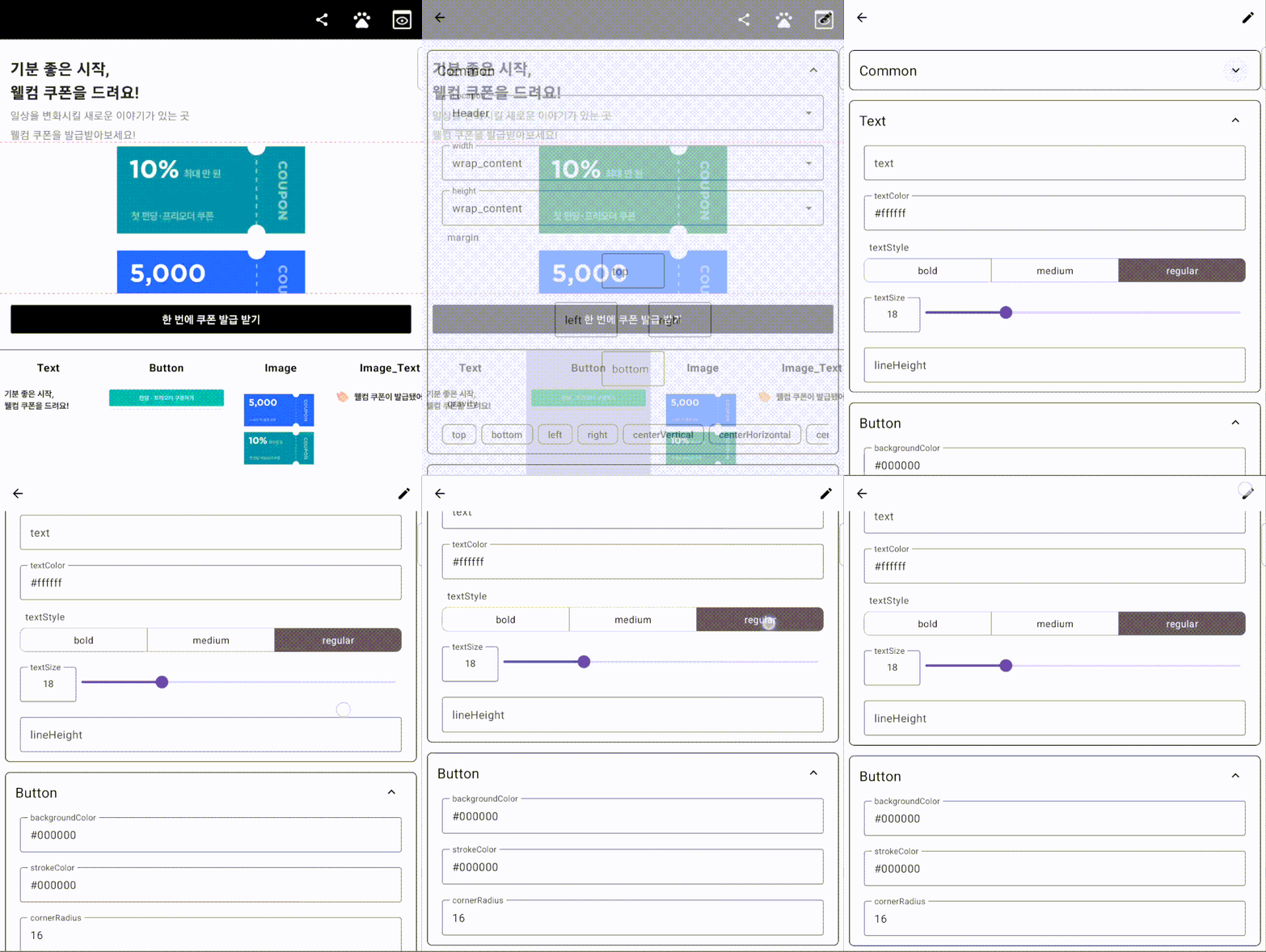
Android app
The applications developed using Compose Multiplatform can run on both desktop and Android devices. You can also view a preview of the screen by configuring a server-driven UI. Additionally, you can extract JSON data and save it as a file.
Previously, it was a hassle to create JSON files and test them on each platform. It was very convenient to be able to check the UI using the admin tools without going through that process.
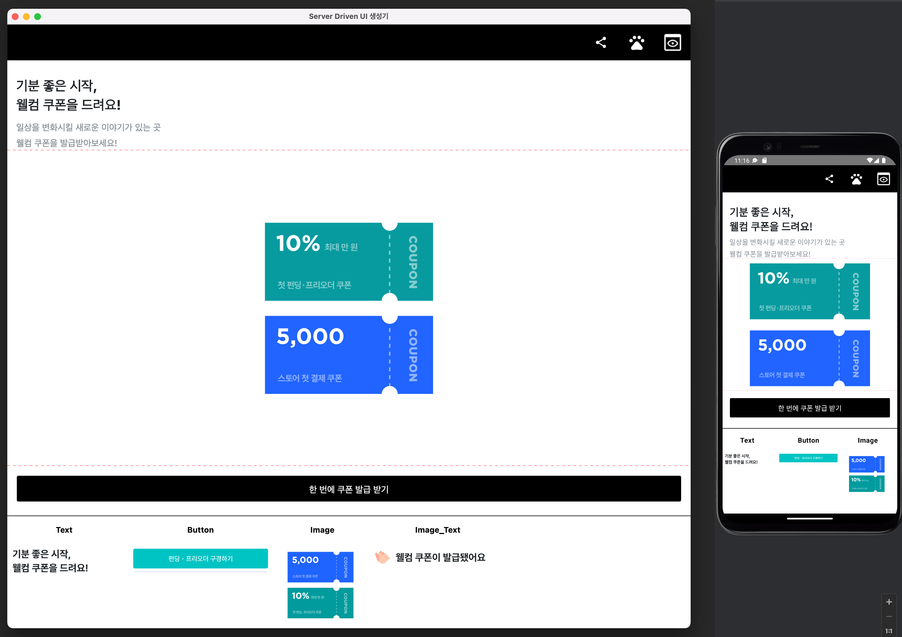
In closing
Developing a desktop app seemed daunting at first, but I was also excited by the prospect of taking on a new challenge. Since I was able to use Compose as well, I felt like I’d killed two birds with one stone after finishing the project.
However, there are still a few areas for improvement. Based on feedback, some users suggested that a drawer navigation system—which allows for edits on a single screen—would be more convenient than a dialog box. We plan to use this feedback to improve the UI/UX.
Additionally, to make the system easier for operations staff to use, we plan to replace technical terms like `lineHeight`, `gravity`, and `margin` with terminology that is easier for everyone to understand.
I’m excited to see the endless possibilities that Server-Driven UI and Compose Multiplatform will bring. I’m also curious about the features coming to the Experimental section. It was a pleasure to gain such valuable experience. 🙂🚀
Do you still have questions? 👀
Curious about the App Development Team’s culture?👉 Click here
The App Development Team also created the Instagram share feature!👉 Click here
View our current development job openings 👉 Click here